Translate this page

Showing posts with label computer tips. Show all posts

Tuesday, March 10, 2015

Fastest way to open the folder.


0 comments

This post will tell you about the fastest way to open your folders. You can open your folder from the Run command. It is very useful for those whose fingers doesn't like to work slow.
Follow some simple steps.


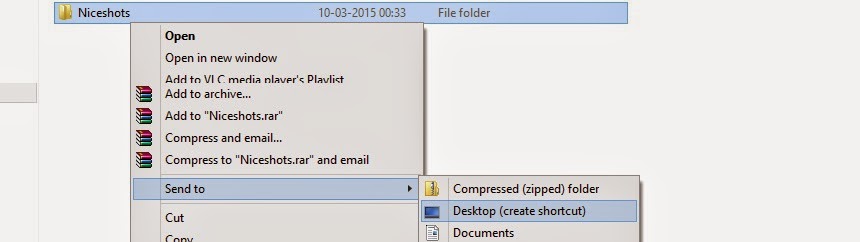
  1.  Create a shortcut for your folder which you want to open by using shortcut.
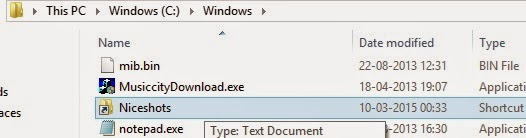
    • Right click on folder and select "Send to" -> "Desktop(Create Shortcut)"


  2. Cut and paste this shortcut to location "C:\Windows".

  3. Rename the folder. 
  4. Now you are ready to open your folder from Run command.
Open Run Command(Window key + R). Put name of your folder(Name after renaming the folder). Press enter and see the magic.


Share this articles with your friend if you like it. Or you can share your comments about this post. 

Monday, March 11, 2013

How to change logon screen background.


1 comments


You can make your personal computer to show the image as you want. You can change window default logon background image with your image and the image which you want.
Just follow some simple steps:
1.       Click on start and open run.
2.       Type regedit in Run panel. Press enter.
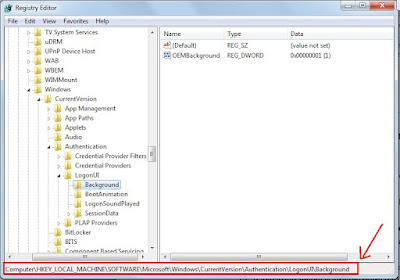
3.       Open
HKEY_LOCAL_MACHINE/SOFTWARE/Microsoft/Windows/CurrentVersion/Authentication/LogonUI/Background
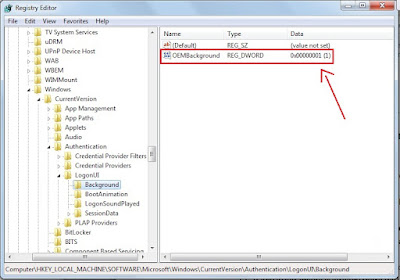
4.       Now open OEMBackground entry.
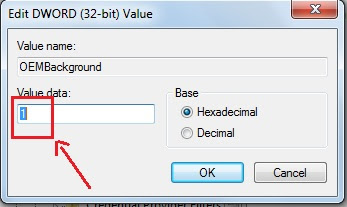
5.       Change the value in Value Data field from 0 to 1.
6.       Click on OK.
7.       Now open C:\Windows\System32\oobe.
8.       See for the folder info. If it is not there then create a new folder with name info.
9.       Create a new folder in it with name Backgrounds.
10.   Now choose your JPEG(jpg) wallpaper and change its name to backgroundDefault.jpg.
11.   Copy and paste this image into Backgrounds               folder.
12.   If any other image is already there with same name then change its name first and then copy your image here.
NOTE: file must be less than 256kb

Learn also
You can place your message on logon page. Learn here how to place your message on logon page.

Wednesday, February 27, 2013

How to show your name with time in taskbar.


0 comments

Microsoft provided a small watch in the task bar of windows. Now you can use this watch as your  name display board.

You can replace AM or PM with your name or the text you want to show. It is very simple trick. You can impress your friends by displaying your name with time.
Just  follow below steps


          1.       Click on start and open control panel.
          2.       Open Regional and language option.


          3.       Go to Additional settings. And click on Time tab.

          4.       Now change symbol AM or PM with your name. You can insert text other then you name.

          5.       Click on apply and then ok.
Enjoy.

Tuesday, February 19, 2013

How to change the automatic start of a program on window startup.


0 comments


Sometime when you start the window, a lot of applications start automatically and it makes the
window very heavy and slow. Now you can stop these applications to start automatically. This post will be very helpful for you.
Follow these simple steps:--


1.      Open Run window by clicking on start and then Run.
2.      A window will start. Write msconfig in it. And press enter.
3.      A Configuration Utility window will start. Click on Startup tab in it.
4.      You will see a list of applications which starts automatically when you start the window.
5.      Uncheck the application you don’t want. Click ok.

Done.
Enjoy

Learn also

Use icons of your desktop without minimizing the opened windows.

How to hide your Disk Drive.


Monday, February 18, 2013

How to change the default function of Numlock.


0 comments


The Numlock key on standard computer keyboard is used to change

 the function mode of numeric keypad.
Numeric keypad works as a function keypad when the Numlock key is set to OFF.
And sometime you want to change its default functionality( you want it always “ON” on window startup).


Here I am going to explain how to do this. Follow these steps..
      1.       Open Start menu, open Run and type regedit in it and press Enter.
      2.       Expand HKEY_CURRENT_USER \Control Panel\Keyboard.
      3.       Double click on InitialKeyboardIndicators  in right side window.
      4.       Enter the one of the following value in ‘Value Data’ field according to your need and press OK.
       0 ---Numlock will be OFF on window startup
       1 --- Disable the Numlock Key.
       2 --- Numlock will be ON on startup.

Saturday, August 18, 2012

How to convert YouTube video files in other format like mp3, mp4, 3gp,avi etc.


0 comments

How to convert YouTube video files in other format like mp3, mp4, 3gp,avi etc.
Sometime we need youtube video file in other formats like sometime we want it in mp3 format, sometime in 3gp etc. I have very simple way to do this
Just follow below steps
1.       Cick on below link
2.       Enter your youtube file Url in the text box shown in front page of website.
3.       Click on Download now.
4.       It will ask the format in next step. Select one format in which you want the file.
5.       Click on start conversion.
6.       It will start the conversion. After completion it will show a link to download the converted file. 
7.       Download the file.
Enjoy!!!

LEARN ALSO


Wednesday, August 1, 2012

How to send large file to your friend.


0 comments


We use our email accounts to send the file to our friends. But almost all the email accounts have the
limit on size for sending the files. These accounts don’t allow us to send files more than 20 Mb. But you
can send the file up to 5 GB very easily. Just follow some below steps

1. Click on the link given below or copy and paste it in your browser address bar.
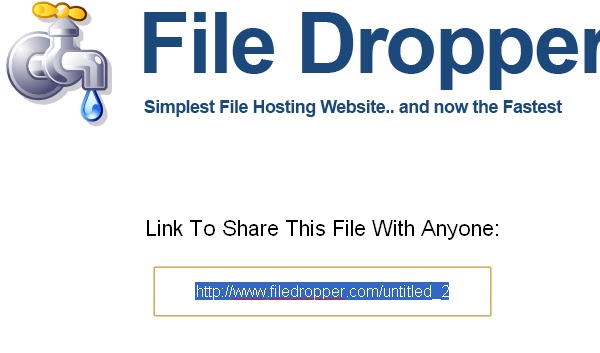
http://www.filedropper.com
2. Upload your file at this website.
3. After uploading it will give a link to you.

4. Save that link and send it to your friend and ask him to download the file here.

5. Very easy and simple.

***NOTE: This is public so be aware while sending your secret data. Anyone can download it if he/
she will get the link of your file.

ENJOY!!!

Learn Also

How to get the email ids of all facebook friends.
Covert your files in PDF format using Facebook....

Friday, July 27, 2012

How to Turn ON your pc in few seconds.


0 comments

Sometimes we can’t wait for our system to show the desktop after starting it. I have a trick to start up your pc with in 10 sec( may vary).


Follow some below steps to do this.
1. Star your run window by pressing window+R keys on your keyboard.
2. Type regedit and press Enter.

 3. A Registery Editor window will open. Open this pathHKEY_LOACAL_MECHINE\ SYSTEM\ CurrentControlSet \Control \ContentIndex
4. Find the Registry “Startup Delay”. And double click on it.

5. Select the Decimal Radio button.

6. The value given is 480000(75300 in hexadecimal)
7. Change its value to 40000 and press ok.
8. Now done. Restart your pc and see the magic.

ENJOY!!!!

Learn Also
How to select files and folder with the help of check boxes.

How to schedule your pc to shutdown automatically. . . .


Thursday, July 26, 2012

How to select files and folder with the help of check boxes.


0 comments


Everyone knows that for selecting the file in our computer we just click the mouse button on it. And for selecting multiple folder or files we use the shift or ctrl key on keyboard with the mouse button. But you can select the multiple files by just checking the check box.
Follow some below steps:


1.      Open your  My Computer and open your Folder option.
a.       In Window XP you can open folder option by clicking on the Tool menu of your My Computer and then Folder Option.
b.      And in Window 7 click on Organize given in left top corner of your My Computer. And then click on Folder and Search Option

2.       Now open view tab in Folder Option window and check the option “use checkbox to select the items”. Then OK.
3.       Now you will find that when you will move the cursor on your folder or file a checkbox will appear. You can check it to select the file
4.       You can check the multiple checkbox to select multiple files without pressing the shift or control key.
ENJOY!!!!

Learn also

Use icons of your desktop without minimizing the opened windows.

How to schedule your pc to shutdown automatically. ....

Tuesday, July 24, 2012

Use icons of your desktop without minimizing the opened windows.


0 comments


Sometimes you want to use the files on the desktop frequently. And it is not good to minimize your open windows for using these files again and again. I have a solution for that. You can access your desktop directly from the taskbar. Follow some simple steps given below.
1.       Right click on your Window-Taskbar.
2.        Open properties.
3.       A window will open(Taskbar and Start Menu Properties).

4.       Select the Toolbars tab in it.
5.       Select Desktop. And press Ok.
6.       Now a Desktop link will appear in your TaskBar with arrow sign.
7.       Click on this link a list of your destop items will come.
8.       Now you can access your desktop without minimizing the window
ENJOY!!!!

Learn Also

Monday, July 16, 2012

How to save your computer from the virus injected USB flash drives.


0 comments


In these days every one uses the USB flash drives to transfer the data from one computer to another computer. And it is very easy way to transfer the virus to your computers. If your Flash Drive contains any virus and when you open this, the virus affects your computer files. So we should know that how to save our computer to be injected from the virus which comes from the USB flash drives (Pen Drives).
I have tips to do that. You can use the USB flash drives without opening. Just follow the below steps to do that…

  1. Right click on Task Bar and click on Toolbars.
  2. Then click on New Toolbar
  1. Click on My Computer and then ok.
  1. It will create a My Computer tool with the arrow sign on the right side of the taskbar.
  2. Now you can access any drive and the files from here. Click on the arrow and it will show a list of your drives.
  3. Now you can go to the file where you want to go without opening the Flash drive.

  1. You can copy the file by right click and select the copy option in it.
  2. Now you can paste any where you want.

It is very useful way to access the virus injected drives without opening them. But it will better that you scan your Flash Drives with good antivirus.


Wednesday, November 30, 2011

How to write your name in right click menu of my computer.


0 comments


I have a trick in which you can write your name to the right click of the my computer and you can add any application on right click menu. You have to follow the below steps..

Step 1.. Copy the following text and paste it into notepad and save this file with extension .reg
Windows Registry Editor Version 5.00
[HKEY_CLASSES_ROOT\CLSID\{20D04FE0-3AEA-1069-A2D8-08002B30309D}\shell\Registry Editor]
@="Your Name Or Name of the Application"
[HKEY_CLASSES_ROOT\CLSID\{20D04FE0-3AEA-1069-A2D8-08002B30309D}\shell\Registry Editor\command]
@="Location Of The Application"


Step 2:.. now edit this file and write your name or application name in the place of “Your Name Or Name of the Application”.
Eg.
[HKEY_CLASSES_ROOT\CLSID\{20D04FE0-3AEA-1069-A2D8-08002B30309D}\shell\Registry Editor]
@="Bhupesh"


or enter the location of name and your file in the place of “Location Of The Application”.
Eg.
Windows Registry Editor Version 5.00
[HKEY_CLASSES_ROOT\CLSID\{20D04FE0-3AEA-1069-A2D8-08002B30309D}\shell\Registry Editor]
@="Add remove programs"
[HKEY_CLASSES_ROOT\CLSID\{20D04FE0-3AEA-1069-A2D8-08002B30309D}\shell\Registry Editor\command]
@="control appwiz.cpl"


How to add Control Panel

[HKEY_LOCAL_MACHINE\SOFTWARE\Classes\CLSID\{20D04FE0-3AEA-1069-A2D8-08002B30309D}\shell\Control Panel\command]
@="rundll32.exe shell32.dll,Control_RunDLL"

How to add Add/Remove Application.

[HKEY_CLASSES_ROOT\CLSID\{20D04FE0-3AEA-1069-A2D8-08002B30309D}\shell\Add/Remove\command]
@="control appwiz.cpl"

How to add Reboot Application.

[HKEY_CLASSES_ROOT\CLSID\{20D04FE0-3AEA-1069-A2D8-08002B30309D}\shell\[Reboot]\command]
@="shutdown -r -f -t 5"

How to add Shutdown Application.

[HKEY_CLASSES_ROOT\CLSID\{20D04FE0-3AEA-1069-A2D8-08002B30309D}\shell\[Shutdown]\command]
@="shutdown -s -f -t 5"

Learn also How to schedule your pc to shutdown automatically.
....

Saturday, November 5, 2011

How to schedule your pc to shutdown automatically.


0 comments


Now you can schedule your pc to shutdown automatically. You have to follow some simple steps
1.       Open start menu. Type Task Scheduler and open it.
2.        A dialogue box will open. Click on Action option and click on create basic task.

3.       Write any name to your task in the Name Text box. Click Next.

4.       Select your schedule time when you want to start it. Click Next.

5.       Select the time when you want to start it. Click Next.

6.       Select start a program. Click Next.
7.       Now browse the path of task which you want to start. For  Shutdown paste this path in this field
C:\Windows\System32\shutdown.exe
Click Next.

8.       Now press finish button. Done.
Now your task is completed. Your schedule is set.
If your pc is iogged in at the time of schedule then one minute given to the user for saving the data before shutdown.

Thursday, October 27, 2011

How to copy Text from an image document.


1 comments


Friends as you know it is like impossible to copy the text from an image. Suppose if you have a document which has some important text data. And this document is in the form of image then you can’t copy the data from that image. 
But here you can get the way to copy your data. It is very easy and provided by Microsoft. it uses the OCR method. OCR is Optical Character Recognition which is used to extract the text data form the images. You need the Microsoft office in your computer.
How to do this..
1.       If you don’t have Microsoft office in your computer then install it.
2.       Open Microsoft Office One Note.
3.       Drag and Drop your image in this.
4.       Right click and press copy text from image.

5.       Now paste it into notepad. You will get your data.
 Note: It doesn't recognize correct data. You may need some modification in your data. So before finalize your data check it carefully.

Learn also How to lock your personal data .
How to create shortcut key for a program.

Saturday, October 22, 2011

How to switch off your monitor using keyboard.


0 comments


Switch off your computer monitor or your laptop screen by pressing keyboard keys. You can save energy by doing this.
PushMonitorOff is the software which is used for this. Download it from the following link
Download and run it. Now you can switch off your monitor or laptop screen by pressing Shift+F1 .
You can change this shortcut from the software options.
How to change the shortcut:  when you will run the software then a file PushMonitOff.ini  will be created. Open it and change the setting in the two lines from below. You can change the modifier into Ctrl  and Alt and you can replace the F1 with another button. Save it and again run the software.
You  can change the shotcut from the below right corner in the task bar. a icon will show for pushmonitoroff right click on it and click on setting now change the setting......


Thursday, October 13, 2011

How to create shortcut key for a program.


0 comments


Most of the people loves to work with shortcut keys in computer world. There are many useful and mostly used shortcuts are present in windows. But you can create your own shortcut key.

Right click on the program for which you want to create the shortcut key(programs on desktop or in start menu). Click on properties. Open shortcut tab.

Now create your own shortcut key in the 'shortcut key' field by pressing ctrl or alt. now press ok.


Note: shortcut key can be write with ctrl and alt together.

Tuesday, April 19, 2011

Microsoft Excel shortcuts


0 comments


Many professional uses the Microsoft excel for their work. Microsoft Excel makes their work easy and fast and easy to understand. It is used by the number of people in this world. Microsoft Excel uses the table to collecting the data and mange these data. It will be more easy when the people who uses the Excel know its shortcuts.
Many useful shortcuts are given below. They are described with their functions.


F5
Go to a specific excel cell
F11
Create the chart
F2
Edit selected cell
F7
Spell check for selected text
Ctrl+;
Enter current date.
Ctrl+Shift;
Enter current time.
Shift +F3
Open the formula window.
Shift +F5
BringUp search box.
Alt +Shift+F1
New worksheet insertion.
Ctrl +Page down
Move between Excel worksheets.
Ctrl +page up
Move between Excel worksheets.
Alt+=
Create formula for sum all above cells
Ctrl+tab
Move beteen two Open Excel files.
Ctrl +’
Insert the value of above cell into currently selected cell
Ctrl +shift +$
Format number in Currency format
Ctrl +shift +!
Format number in comma format
Ctrl +shift +#
Format numbers in date format
Ctrl +shift +@
Format number in time format
Ctrl +shift +^
Format number in scientific formats
Ctrl +shift +%
Format in percentage format
Shift +space
Entire row selection
Ctrl+space
Entire column selection
Ctrl +F6
Switch between open windows/workbooks.
Ctrl +f10
Maximize selected window
Ctrl +f9
Minimize current selected window
Ctrl +5
Strike through highlighted portion
Ctrl +P
Open print dialog box
Ctrl +z
 Undo last action
Ctrl+B
Bold selected text
Ctrl+A
Select all contents
Ctrl +I
Italic selected text.
Ctrl+k
 Insert link.
Ctrl +U
Underline selected portion.

just bookmark this page and enjoy your work in excel. it will be very helpful for you....
Learn how to hide your Disk Drive.

Subscribe

Subscribe to get free email updates...

Delivered by FeedBurner

 
Design by Free WordPress Themes | Bloggerized by Lasantha - Premium Blogger Themes | Grants For Single Moms
Facebook RSS Feed Twitter Delicious Digg Stumbleupon Favorites More